
FIRST NAME *
SURNAME *
EMAIL *
PHONE
MESSAGE *
teamo
This site is protected by reCAPTCHA and the Google Privacy Policy and Terms of Service apply.
Thanks for your message!
We will do our best to get back to you as soon as possible.

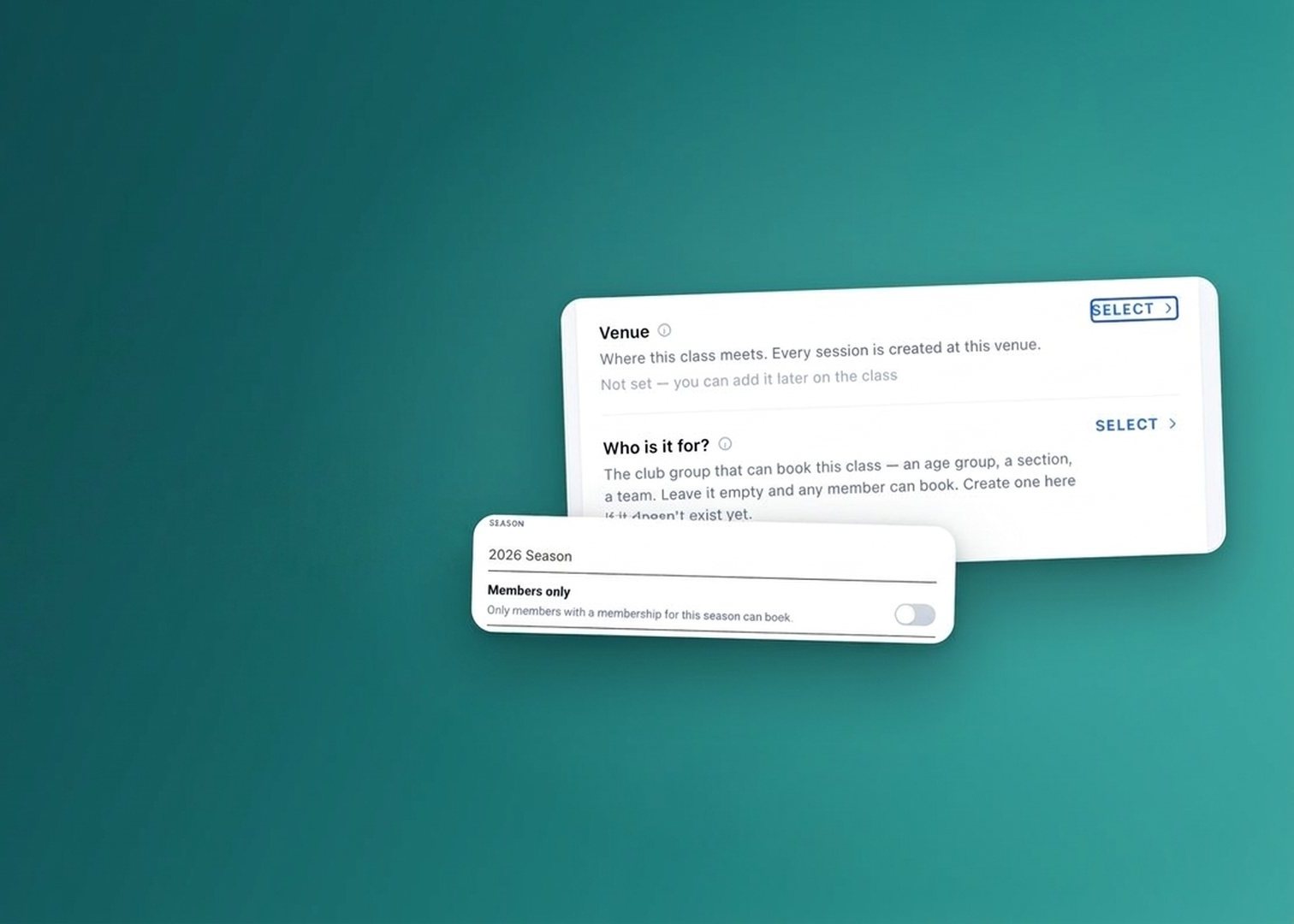
Classes are now quicker to set up, can be kept for members only, and are clearer to book.
For class and course organisers, class booking now covers the whole journey in one place. You build the class without leaving the form, choose whether it’s open to everyone or just your members, and parents get a booking form that tells them exactly what’s needed.
Class booking is how your club sets up a class and how people book onto it. A class is paid for by a ticket or by a membership, and the class form creates either one for you, so there’s no separate trip to set up the payment side first.
Open Class Booking and start a new class. Everything the class needs can now be created from inside the form: venue, coach, age group, season, currency and group. If a piece doesn’t exist yet, create it there and carry on.

Pick a venue and who the class is for, or create one there if it doesn’t exist yet.
You can add a coach who isn’t in the club yet, straight from the class form.

Add a coach who isn’t in the club yet, without leaving the class form.
Pick a ticket or a membership. The same sheet makes whichever you choose.

How do members pay? A ticket or a membership, made from the same sheet.
Mark the ticket product as Members only. Only someone with a membership for this season can then book it, whether they come from the event page, the ticket selector on Home or class booking. Your products list shows which tickets are members-only, so you can see the set-up at a glance.

The Members only switch on a ticket product.
When you switch it on, you’ll see a warning that the restriction is not fully secure. It’s worth bearing in mind when you decide which tickets to use it on.
New to tickets? See Collect Tickets in the Help Centre.
Questions about class booking? Just reach out to the team in-app.
Our Partners


We will do our best to get back to you as soon as possible.